Learn how to install the Voice123 app in Google Chrome for faster access to your account. Once installed, you can open Voice123 directly from your desktop or taskbar and continue where you left off.
What is the Voice123 app?
The Voice123 app is a faster way to access Voice123 from your computer.
Instead of opening Voice123 in a browser tab each time, you can install it as an app and launch it with a single click from your Dock (Mac) or Taskbar (Windows).
The app gives you access to the same Voice123 features you use in your browser, including:
- Projects
- Messages
- Search
- Profile
- Membership
- Payments
- AI Voices
No additional download is required beyond the installation through Google Chrome.
Before you begin
Before installing the Voice123 app, make sure:
- You're using Google Chrome
- You're logged in to your Voice123 account
If you aren't logged in, you won't see the installation option in Chrome.
How to install the Voice123 app
Step 1: Sign in to Voice123
Go to https://voice123.com and log in to your account.
After signing in, you'll see an Install app icon on the right side of Chrome's address bar.
Step 2: Install the app
Click the Install app icon.
A confirmation window will appear.
Click Install.
Step 3: Open Voice123
After installation, the Voice123 app opens automatically in its own window.
You'll now be using Voice123 as a desktop app while keeping the same experience you're familiar with in your browser.
Step 4: Pin the app for quicker access
For the fastest experience, pin the Voice123 app to your Dock (Mac) or Taskbar (Windows).
This allows you to launch Voice123 with a single click anytime.
Open Voice123 in the app from Chrome
If you visit Voice123 in Chrome after installing the app, you'll notice an Open in app button in the address bar.
Selecting Open in app opens the exact page you're currently viewing inside the Voice123 app.
For example, if you're viewing your Search page in Chrome, you'll be taken directly to the Search page in the app.
How to uninstall the Voice123 app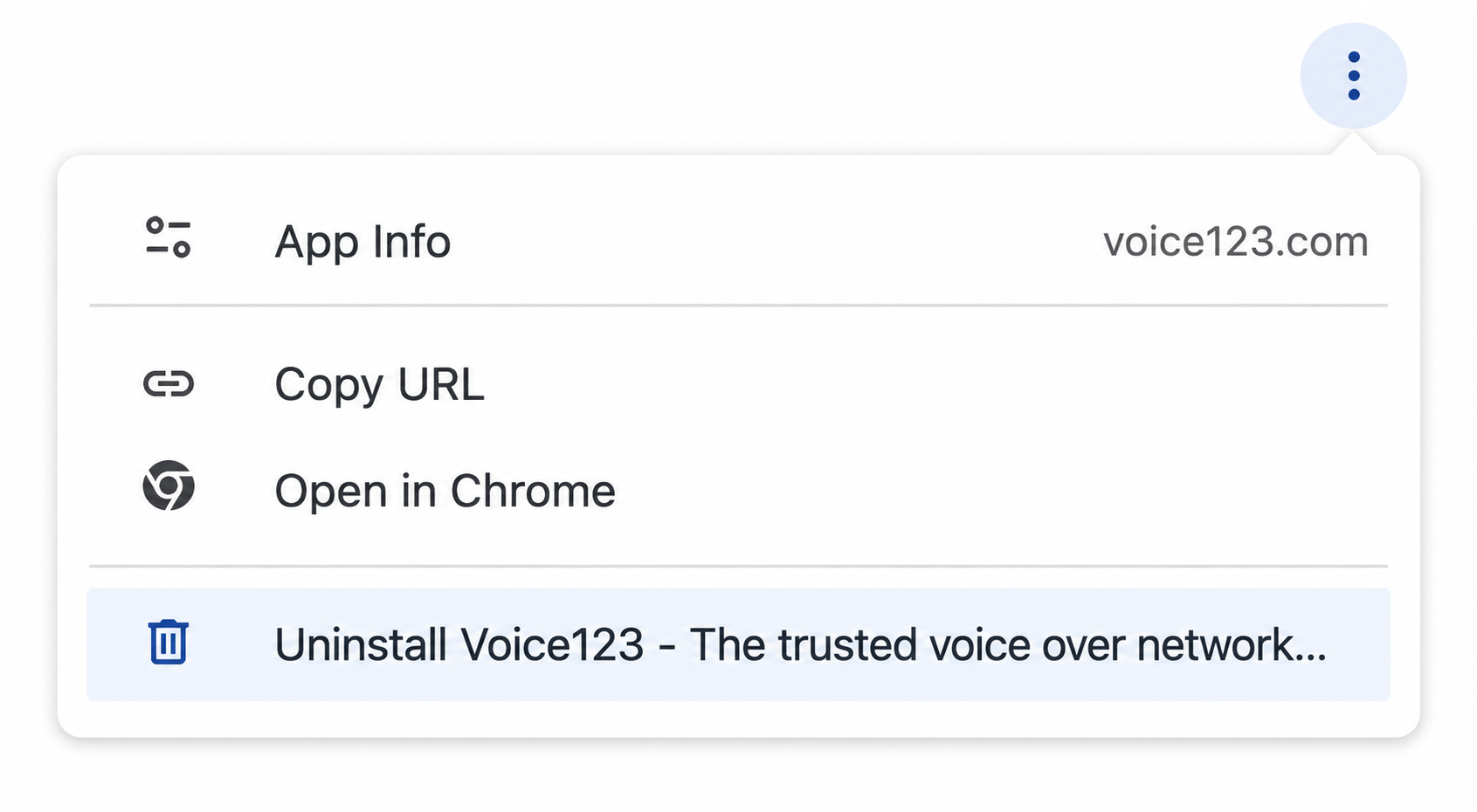
If you'd like to remove the Voice123 app:
- Open the Voice123 app.
- Click the three-dot menu in the upper-right corner.
- Select Uninstall Voice123.
Removing the app won't delete your Voice123 account or any of your information. You can install the app again at any time.
Frequently Asked Questions
Can I still use Voice123 in my browser?
Yes. Installing the app doesn't replace the website. You can continue using Voice123 in Chrome whenever you prefer.
Does the app have different features than the website?
No. The Voice123 app provides the same functionality as the website while making it faster and easier to access.
Do I need to install the app again?
No. Once installed, the Voice123 app remains on your computer until you uninstall it.
Will installing the app affect my Voice123 account?
No. Installing or uninstalling the app doesn't change your account, profile, projects, or messages.
Comments
0 comments
Please sign in to leave a comment.